Kubespray도전과제 harbor
Kubespray도전과제 harbor
TL;DR
kubespary의 Ansible Playbook & Role중 Containerd 관련 부분을 미러 저장소로 구축해보자.
컨테이너 런타임(containerd/crio/docker) + runc + CNI 실행 환경을 설치/검증
- Start: Container Engine Role
- OS 호환성 확인 및 패키지 설치
- Binary 설치
- Configuration
- Systemd 서비스 등록 및 실행
- crictl / nerdctl 도구 설정
- Finish :Container 준비 완료
컨테이너 관련 TASK 분석
컨테이너가 설치 되어있는지 확인하는 TASK
1
cat roles/container-engine/validate-container-engine/tasks/main.yml
containerd가 설치되어있는지 확인한다.
1
2
3
4
5
6
7
8
9
10
11
12
13
14
15
16
17
18
19
20
21
- name: Ensure kubelet systemd unit exists
  stat:
    path: "/etc/systemd/system/kubelet.service"
  register: kubelet_systemd_unit_exists
  tags:
    - facts

- name: Check if containerd is installed
  find:
    file_type: file
    recurse: true
    use_regex: true
    patterns:
      - containerd.service$
    paths:
      - /lib/systemd
      - /etc/systemd
      - /run/systemd
  register: containerd_installed
  tags:
    - facts
Runc 바이너리 다운로드 및 각 노드에 설치하는 TASK
- 경로
1
cat roles/container-engine/runc/tasks/main.yml
- 운영체제 확인 및 패키지 매니저에 의한 runc 패키지를 삭제
- 삭제하는 이유
- 시스템 엔지니어 입장에서 바이너리 중복은 매우 까다로운 문제를 야기한다.
- 버전 충돌 방지: OS 패키지 매니저(yum/dnf)를 통해 설치된 구버전
runc가/usr/bin에 남아 있고, Kubespray가 최신 버전을/usr/local/bin에 설치한다면, 시스템은$PATH우선순위에 따라 엉뚱한(구버전) 엔진을 실행할 수 있다. - 환경 표준화: Kubespray는 클러스터 내 모든 노드의 환경을 동일하게 유지하려고 한다. 지정된 경로 외의 바이너리를 제거함으로써 예측 가능한 환경을 구축한다.
- 버전 충돌 방지: OS 패키지 매니저(yum/dnf)를 통해 설치된 구버전
- 시스템 엔지니어 입장에서 바이너리 중복은 매우 까다로운 문제를 야기한다.
1
2
3
4
5
6
7
8
9
10
11
12
13
14
15
16
17
18
19
---
- name: Runc | check if fedora coreos
  stat:
    path: /run/ostree-booted
    get_attributes: false
    get_checksum: false
    get_mime: false
  register: ostree

- name: Runc | set is_ostree
  set_fact:
    is_ostree: ""

- name: Runc | Uninstall runc package managed by package manager
  package:
    name: ""
    state: absent
  when:
    - not (is_ostree or (ansible_distribution == "Flatcar Container Linux by Kinvolk") or (ansible_distribution == "Flatcar"))
- runc 바이너리 다운로드
1
2
3
4
- name: Runc | Download runc binary
  include_tasks: "../../../download/tasks/download_file.yml"
  vars:
    download: ""
- 다운로드 디렉터리로 부터
runc를 복사
1
2
3
4
5
6
- name: Copy runc binary from download dir
  copy:
    src: ""
    dest: "/runc"
    mode: "0755"
    remote_src: true
- orphaned된 binary 제거
1
2
3
4
5
6
- name: Runc | Remove orphaned binary
  file:
    path: /usr/bin/runc
    state: absent
  when: runc_bin_dir != "/usr/bin"
  ignore_errors: true  # noqa ignore-errors
containerd 다운로드 및 바이너리 배치
1
cat roles/container-engine/containerd/tasks/main.yml
- containerd 다운로드
---
- name: Containerd | Download containerd
  include_tasks: "../../../download/tasks/download_file.yml"
  vars:
    download: ""
unarchive를 통해 공식 경로(containerd_bin_dir)에 압축을 푼다.--strip-components=1옵션은 압축 파일 내의 불필요한 상위 폴더 구조를 제거하고 실제 실행 파일만 깔끔하게 추출하기 위함이다.
1
2
3
4
5
6
7
8
9
- name: Containerd | Unpack containerd archive
  unarchive:
    src: ""
    dest: ""
    mode: "0755"
    remote_src: true
    extra_opts:
      - --strip-components=1
  notify: Restart containerd
- Systemd 등록: 컨테이너 엔진이 OS 부팅 시 자동으로 실행되도록 서비스 파일을 생성합니다.
validate옵션을 통해 서비스 파일 문법에 오류가 없는지 미리 체크한다.
1
2
3
4
5
6
7
8
9
- name: Containerd | Generate systemd service for containerd
  template:
    src: containerd.service.j2
    dest: /etc/systemd/system/containerd.service
    mode: "0644"
    validate: "sh -c '[ -f /usr/bin/systemd/system/factory-reset.target ] || exit 0 && systemd-analyze verify %s:containerd.service'"
    # FIXME: check that systemd version >= 250 (factory-reset.target was introduced in that release)
    # Remove once we drop support for systemd < 250
  notify: Restart containerd
1
2
3
4
5
6
7
8
9
10
- name: Containerd | Ensure containerd directories exist
  file:
    dest: ""
    state: directory
    mode: "0755"
    owner: root
    group: root
  with_items:
    - ""
    - ""
- 회사 망이나 폐쇄망 환경에서는 서버가 인터넷(Docker Hub 등)에 직접 연결되지 못하고 프록시 서버를 거쳐야만 나갈 수 있는 경우가 많다.
http-proxy.conf: 이 파일은 Containerd가 이미지를 Pull 할 때, “어떤 프록시 서버를 거쳐서 나가라”는 정보를 담고 있다.Drop-in파일: 시스템 서비스 파일(containerd.service)을 직접 수정하지 않고, 별도의 경로(…/http-proxy.conf)에 설정을 추가하여 서비스 동작을 제어하는 방식을 ‘Drop-in’이라고 부른다. 이는 원본 파일을 건드리지 않아 관리가 훨씬 안전하다.
1
2
3
4
5
6
7
8
- name: Containerd | Write containerd proxy drop-in
  template:
    src: http-proxy.conf.j2
    dest: "/http-proxy.conf"
    mode: "0644"
  notify: Restart containerd
  when: http_proxy is defined or https_proxy is defined
ctr oci spec: Containerd의 CLI 도구인ctr을 사용해 기본 OCI(Open Container Initiative) 런타임 스펙을 생성하고 이를 변수(set_fact)로 저장한다. 이는 컨테이너가 실행될 때의 표준 규격을 정의하는 작업이다.
1
2
3
4
5
6
7
8
9
- name: Containerd | Generate default base_runtime_spec
  register: ctr_oci_spec
  command: "/ctr oci spec"
  check_mode: false
  changed_when: false

- name: Containerd | Store generated default base_runtime_spec
  set_fact:
    containerd_default_base_runtime_spec: ""
- 버전별 템플릿: Containerd는 2.0.0 버전을 기점으로 설정 파일 구조가 크게 바뀌었다. 코드를 보면 containerd_version is version(‘2.0.0’, ‘>=’) 조건문을 통해 버전별로 다른 템플릿(config.toml.j2 vs config-v1.toml.j2)을 사용하는 로직이 포함되어있다.
1
2
3
4
5
6
7
- name: Containerd | Copy containerd config file
  template:
    src: "config.toml.j2"
    dest: "/config.toml"
    owner: "root"
    mode: "0640"
  notify: Restart containerd
- Containerd가 프라이빗 레지스트리(사용자가 만든 Harbor 등)에 접속할 때 필요한 정보를 설정하는 단계
- 과거에는
config.toml파일 하나에 모든 레지스트리 설정을 때려 넣었지만, 최신 방식은 레지스트리 주소별로 별도의 폴더와 설정 파일(hosts.toml)을 만드는 방식을 권장한다. 그 과정을 Ansible로 자동화한 것이다. no_log: ""- 레지스트리 접속을 위해 ID/PW나 토큰 인증 정보가 설정 파일에 포함될 수 있다. 이때 Ansible 실행 로그에 비밀번호가 노출되는 것을 방지한다. unsafe_show_logs가
false라면 로그를 남기지 않는다.
- 레지스트리 접속을 위해 ID/PW나 토큰 인증 정보가 설정 파일에 포함될 수 있다. 이때 Ansible 실행 로그에 비밀번호가 노출되는 것을 방지한다. unsafe_show_logs가
path: "/certs.d/"- 레지스트리 주소별로 설정 파일을 담을 디렉토리를 만든다.
src: hosts.toml.j2,dest: "/certs.d//hosts.toml"- 위에서 만든 폴더 안에 실제 접속 규칙이 담긴
hosts.toml파일을 생성 - 이 레지스트리는 HTTP인가 HTTPS인가?”, “인증서 검증을 건너뛸 것인가(Insecure)?” 등의 정보가
hosts.toml.j2템플릿을 통해 작성한다.
- 위에서 만든 폴더 안에 실제 접속 규칙이 담긴
- 과거에는
1
2
3
4
5
6
7
8
9
10
11
12
13
14
15
- name: Containerd | Configure containerd registries
  no_log: ""
  block:
    - name: Containerd | Create registry directories
      file:
        path: "/certs.d/"
        state: directory
        mode: "0755"
      loop: ""
    - name: Containerd | Write hosts.toml file
      template:
        src: hosts.toml.j2
        dest: "/certs.d//hosts.toml"
        mode: "0640"
      loop: ""
flush_handlers: 중간에 설정이 바뀌어notify: Restart containerd가 예약되었다면, 설치가 완전히 끝나기 전에 즉시 반영하여 컨테이너 엔진을 재시작한다.enabled & started: 마지막으로 서비스가 정상적으로 떠 있는지 확인하고 부팅 시 자동 시작되도록 확정한다.
1
2
3
4
5
6
7
8
9
- name: Containerd | Flush handlers
  meta: flush_handlers

- name: Containerd | Ensure containerd is started and enabled
  systemd_service:
    name: containerd
    daemon_reload: true
    enabled: true
    state: started
kubespary 에 containerd 의 certs.d 에 ‘미러 저장소’를 우선 순위로 설정해보기
VM 환경 구축
- Vagrantfile 실행
- 아래의 Vagrantfile로
k8s-ctr(컨트롤 플레인)과harbor-registry(이미지 저장소)를 기동하자.
- 아래의 Vagrantfile로
1
vagrant up
Vagrantfile
1
2
3
4
5
6
7
8
9
10
11
12
13
14
15
16
17
18
19
20
21
22
23
24
25
26
27
28
29
30
31
32
33
34
35
36
37
38
39
40
41
42
43
44
45
46
47
48
49
50
51
52
# Base Image
BOX_IMAGE = "bento/rockylinux-9"
BOX_VERSION = "202510.26.0"

Vagrant.configure("2") do |config|
  # ============================================================================
  # ControlPlane Node (기존)
  # ============================================================================
  config.vm.box_architecture = "amd64"
  config.vm.define "k8s-ctr" do |subconfig|
    subconfig.vm.box = BOX_IMAGE
    subconfig.vm.box_version = BOX_VERSION

    subconfig.vm.provider "virtualbox" do |vb|
      vb.customize ["modifyvm", :id, "--groups", "/Kubespray-Lab"]
      vb.customize ["modifyvm", :id, "--nicpromisc2", "allow-all"]
      vb.name = "k8s-ctr"
      vb.cpus = 4
      vb.memory = 4096
      vb.linked_clone = true
    end

    subconfig.vm.host_name = "k8s-ctr"
    subconfig.vm.network "private_network", ip: "192.168.10.10"
    subconfig.vm.network "forwarded_port", guest: 22, host: "60100", auto_correct: true, id: "ssh"
    subconfig.vm.synced_folder "./", "/vagrant", disabled: true
    subconfig.vm.provision "shell", path: "init_cfg.sh"
  end

  # ============================================================================
  # Harbor Registry Node (새로 추가)
  # ============================================================================
  config.vm.define "harbor-registry" do |subconfig|
    subconfig.vm.box = BOX_IMAGE

    subconfig.vm.provider "virtualbox" do |vb|
      vb.customize ["modifyvm", :id, "--groups", "/Kubespray-Lab"]
      vb.customize ["modifyvm", :id, "--nicpromisc2", "allow-all"]
      vb.name = "harbor-registry"
      vb.cpus = 4
      vb.memory = 8192          # Harbor는 메모리 많이 필요
      vb.linked_clone = true
    end

    subconfig.vm.host_name = "harbor-registry"
    subconfig.vm.network "private_network", ip: "192.168.10.100"
    subconfig.vm.network "forwarded_port", guest: 22, host: "60200", auto_correct: true, id: "ssh"
    subconfig.vm.network "forwarded_port", guest: 80, host: "8080", auto_correct: true, id: "harbor"
    subconfig.vm.synced_folder "./", "/vagrant", disabled: true

  end
end
Harbor 세팅하기
vagrant ssh harbor-registry 로 접속
- SSH 접속을 위한 설정
1
2
3
4
5
echo "root:qwe123" | chpasswd
cat << EOF >> /etc/ssh/sshd_config
PermitRootLogin yes
PasswordAuthentication yes
EOF
1
2
3
4
5
6
7
8
9
10
11
12
13
systemctl restart sshd

ssh-keygen -t rsa -N "" -f /root/.ssh/id_rsa
ls -l ~/.ssh

# ssh-copy-id
ssh-copy-id -o StrictHostKeyChecking=no root@192.168.10.100

# ssh 접속 확인 : IP, hostname
cat /root/.ssh/authorized_keys
ssh root@192.168.10.100 hostname
ssh -o StrictHostKeyChecking=no root@harbor-registry hostname
ssh root@k8s-ctr hostname
- docker install
1
2
3
4
5
6
dnf -y install dnf-plugins-core
dnf config-manager --add-repo https://download.docker.com/linux/rhel/docker-ce.repo

dnf -y install docker-ce docker-ce-cli containerd.io docker-buildx-plugin docker-compose-plugin

systemctl enable --now docker
- harbor intall
1
2
3
4
5
6
mkdir -p /opt
cd /opt

wget https://github.com/goharbor/harbor/releases/download/v2.14.2/harbor-offline-installer-v2.14.2.tgz

tar zxvf harbor-offline-installer-v2.14.2.tgz
- harbor 탬플릿을
harbor.yml로 복사
1
2
3
4
5
cd harbor
pwd
# /opt/harbor

cp harbor.yml.tmpl harbor.yml
- HTTPS가 당연 권장되나 private 망을 가정하고 실습을 위해 HTTPS는 주석 처리
1
vi harbor.yml
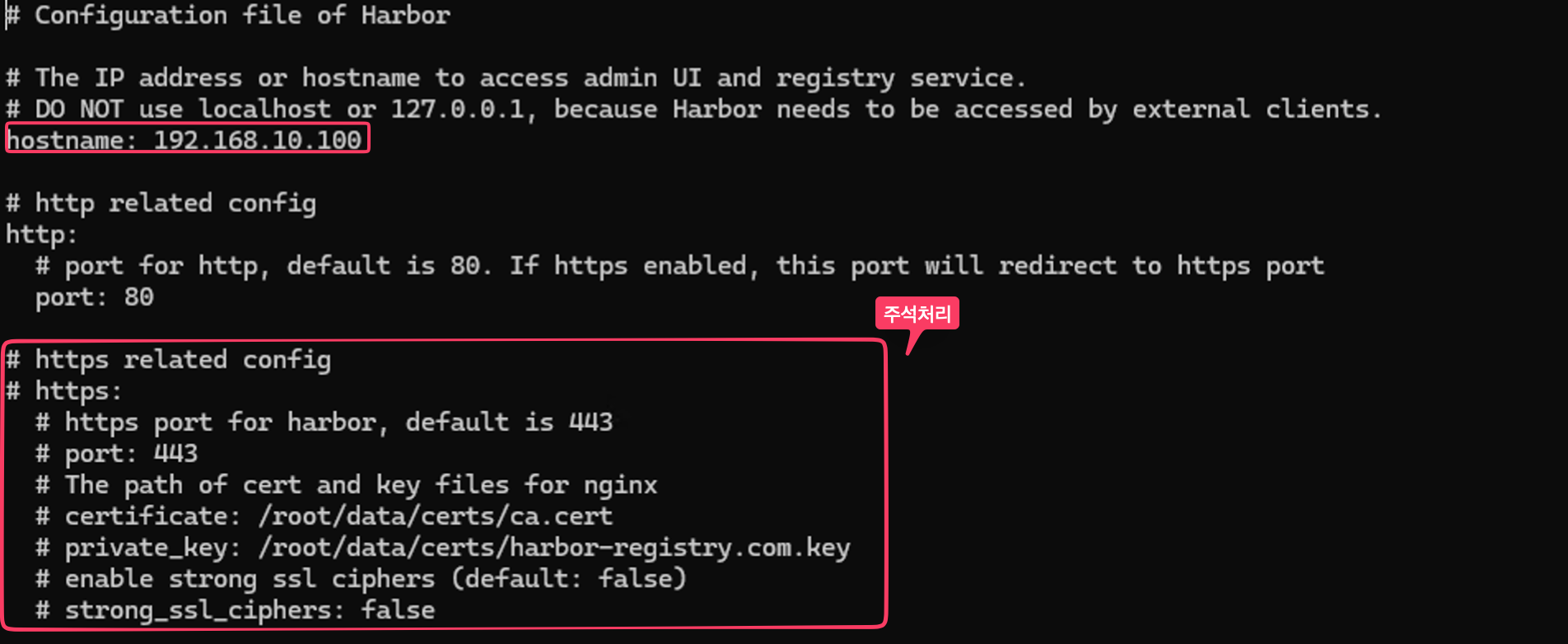
- 설치 준비
1
./prepare --with-trivy
- 설치
1
./install.sh --with-trivy
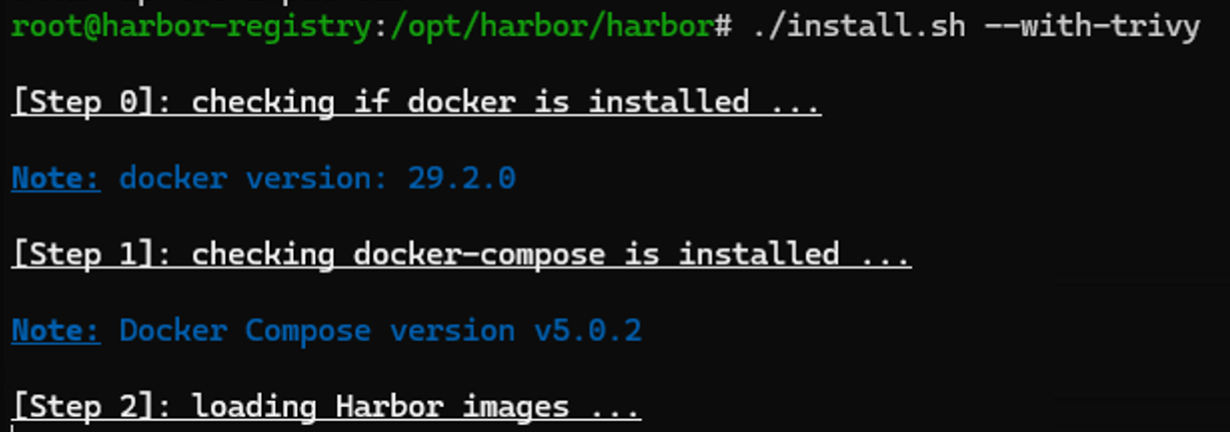
- 설치 과정
1
2
3
4
5
6
7
8
9
10
11
12
13
14
15
16
17
18
19
20
21
22
23
24
25
26
27
28
29
30
31
32
33
34
35
36
37
38
39
40
41
42
43
44
45
46
47
48
49
50
51
52
53
54
55
56
57
58
59
60
[Step 0]: checking if docker is installed ...
Note: docker version: 29.2.0
[Step 1]: checking docker-compose is installed ...
Note: Docker Compose version v5.0.2
[Step 2]: loading Harbor images ...
Loaded image: goharbor/prepare:v2.14.2
Loaded image: goharbor/trivy-adapter-photon:v2.14.2
Loaded image: goharbor/harbor-core:v2.14.2
Loaded image: goharbor/harbor-db:v2.14.2
Loaded image: goharbor/harbor-jobservice:v2.14.2
Loaded image: goharbor/harbor-registryctl:v2.14.2
Loaded image: goharbor/nginx-photon:v2.14.2
Loaded image: goharbor/harbor-portal:v2.14.2
Loaded image: goharbor/redis-photon:v2.14.2
Loaded image: goharbor/registry-photon:v2.14.2
Loaded image: goharbor/harbor-log:v2.14.2
Loaded image: goharbor/harbor-exporter:v2.14.2
[Step 3]: preparing environment ...
[Step 4]: preparing harbor configs ...
prepare base dir is set to /opt/harbor/harbor
WARNING:root:WARNING: HTTP protocol is insecure. Harbor will deprecate http protocol in the future. Please make sure to upgrade to https
Clearing the configuration file: /config/portal/nginx.conf
Clearing the configuration file: /config/log/logrotate.conf
Clearing the configuration file: /config/log/rsyslog_docker.conf
Clearing the configuration file: /config/nginx/nginx.conf
Clearing the configuration file: /config/core/env
Clearing the configuration file: /config/core/app.conf
Clearing the configuration file: /config/registry/passwd
Clearing the configuration file: /config/registry/config.yml
Clearing the configuration file: /config/registry/root.crt
Clearing the configuration file: /config/registryctl/env
Clearing the configuration file: /config/registryctl/config.yml
Clearing the configuration file: /config/db/env
Clearing the configuration file: /config/jobservice/env
Clearing the configuration file: /config/jobservice/config.yml
Generated configuration file: /config/portal/nginx.conf
Generated configuration file: /config/log/logrotate.conf
Generated configuration file: /config/log/rsyslog_docker.conf
Generated configuration file: /config/nginx/nginx.conf
Generated configuration file: /config/core/env
Generated configuration file: /config/core/app.conf
Generated configuration file: /config/registry/config.yml
Generated configuration file: /config/registryctl/env
Generated configuration file: /config/registryctl/config.yml
Generated configuration file: /config/db/env
Generated configuration file: /config/jobservice/env
Generated configuration file: /config/jobservice/config.yml
copy /data/secret/tls/harbor_internal_ca.crt to shared trust ca dir as name harbor_internal_ca.crt ...
ca file /hostfs/data/secret/tls/harbor_internal_ca.crt is not exist
copy  to shared trust ca dir as name storage_ca_bundle.crt ...
copy None to shared trust ca dir as name redis_tls_ca.crt ...
loaded secret from file: /data/secret/keys/secretkey
Generated configuration file: /compose_location/docker-compose.yml
Clean up the input dir

Note: stopping existing Harbor instance ...
...
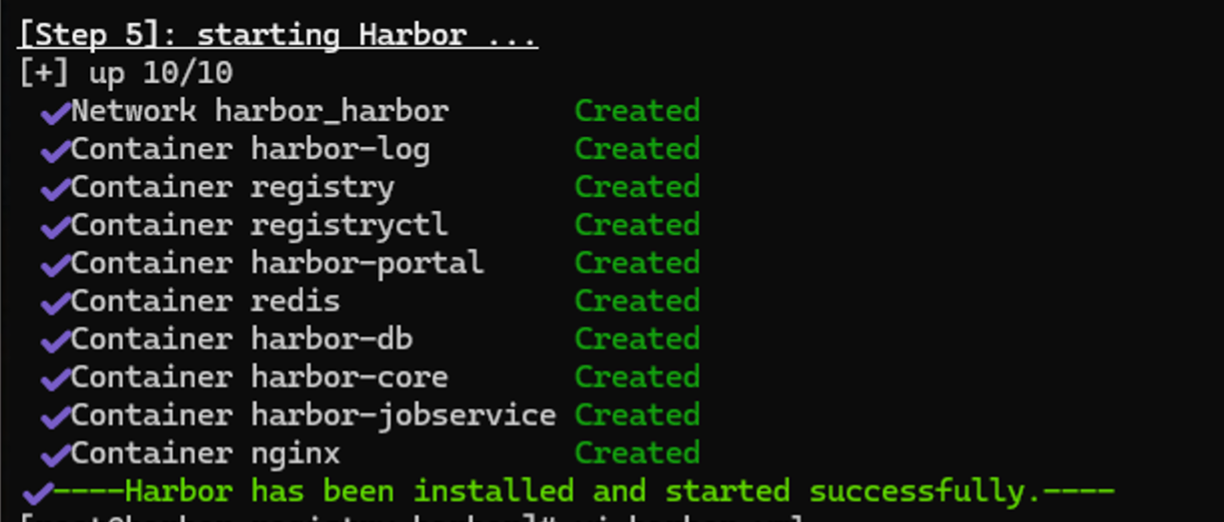
[Step 5]: starting Harbor ...
...
✔ ----Harbor has been installed and started successfully.----
- 성공적으로 기동될시 아래와 같이 각종 컨테이너들이 생성된다.
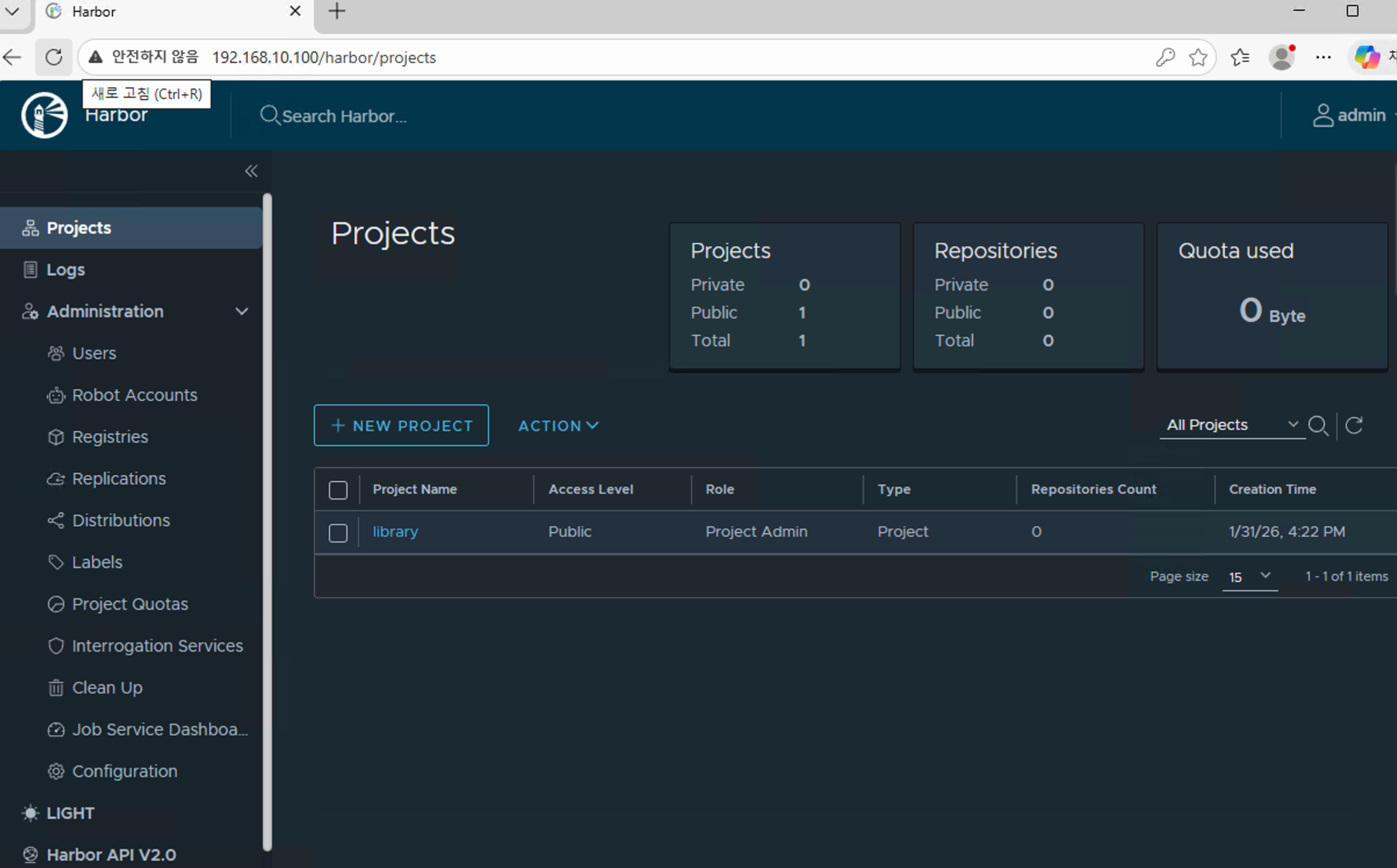
- 브라우저에서 확인
1
2
3
4
192.168.10.100

# id: admin
# passwd : Harbor12345
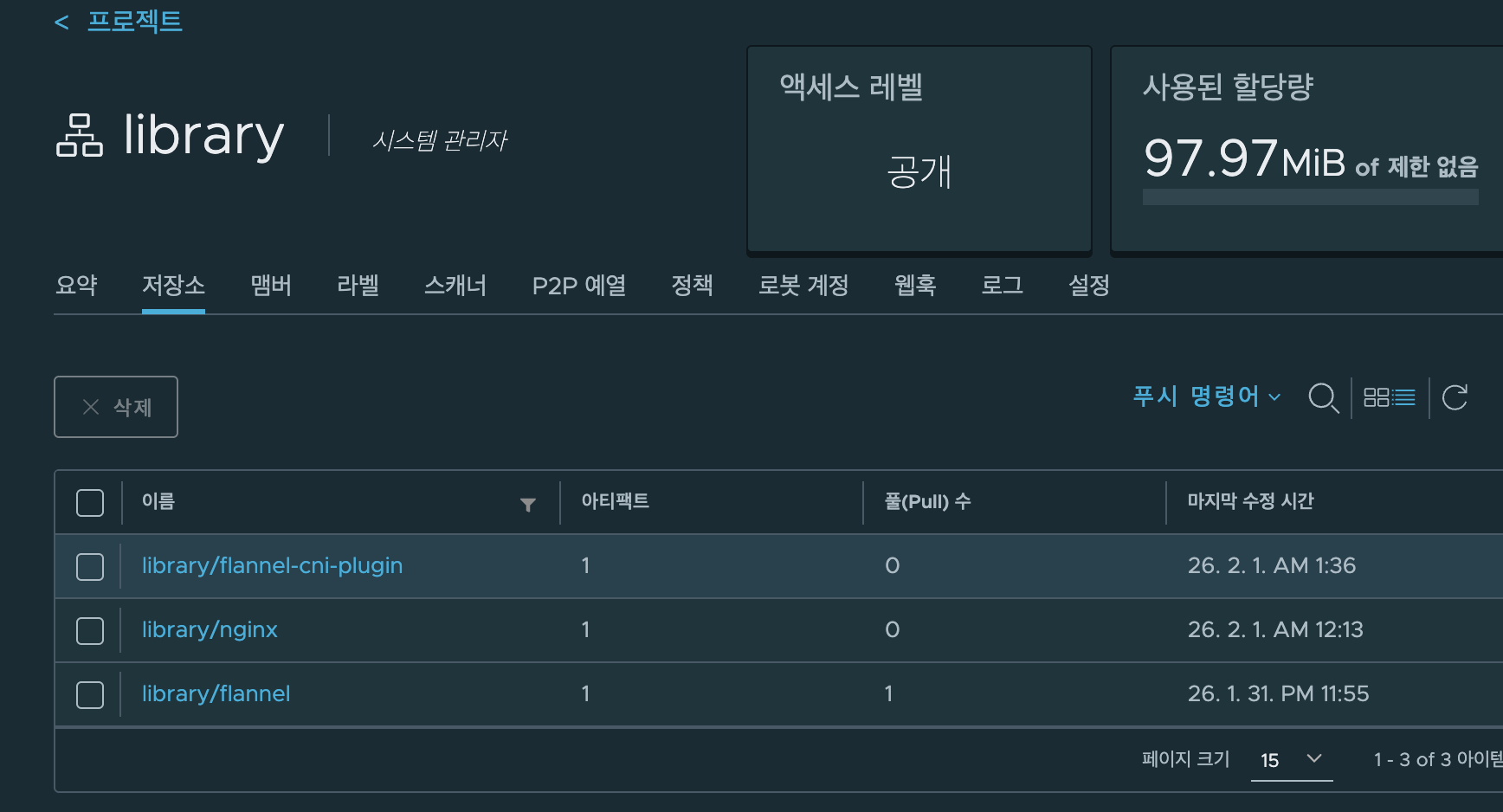
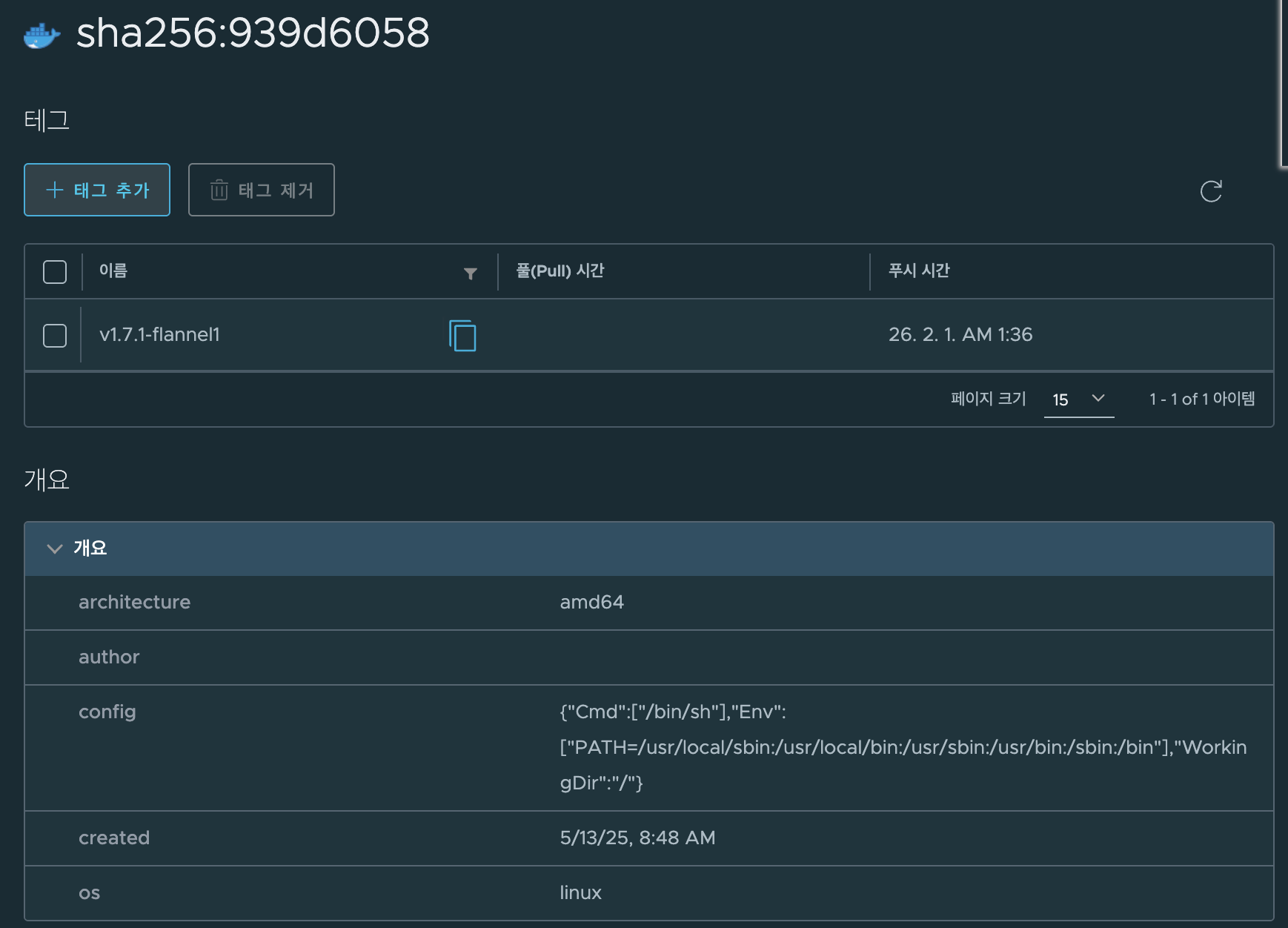
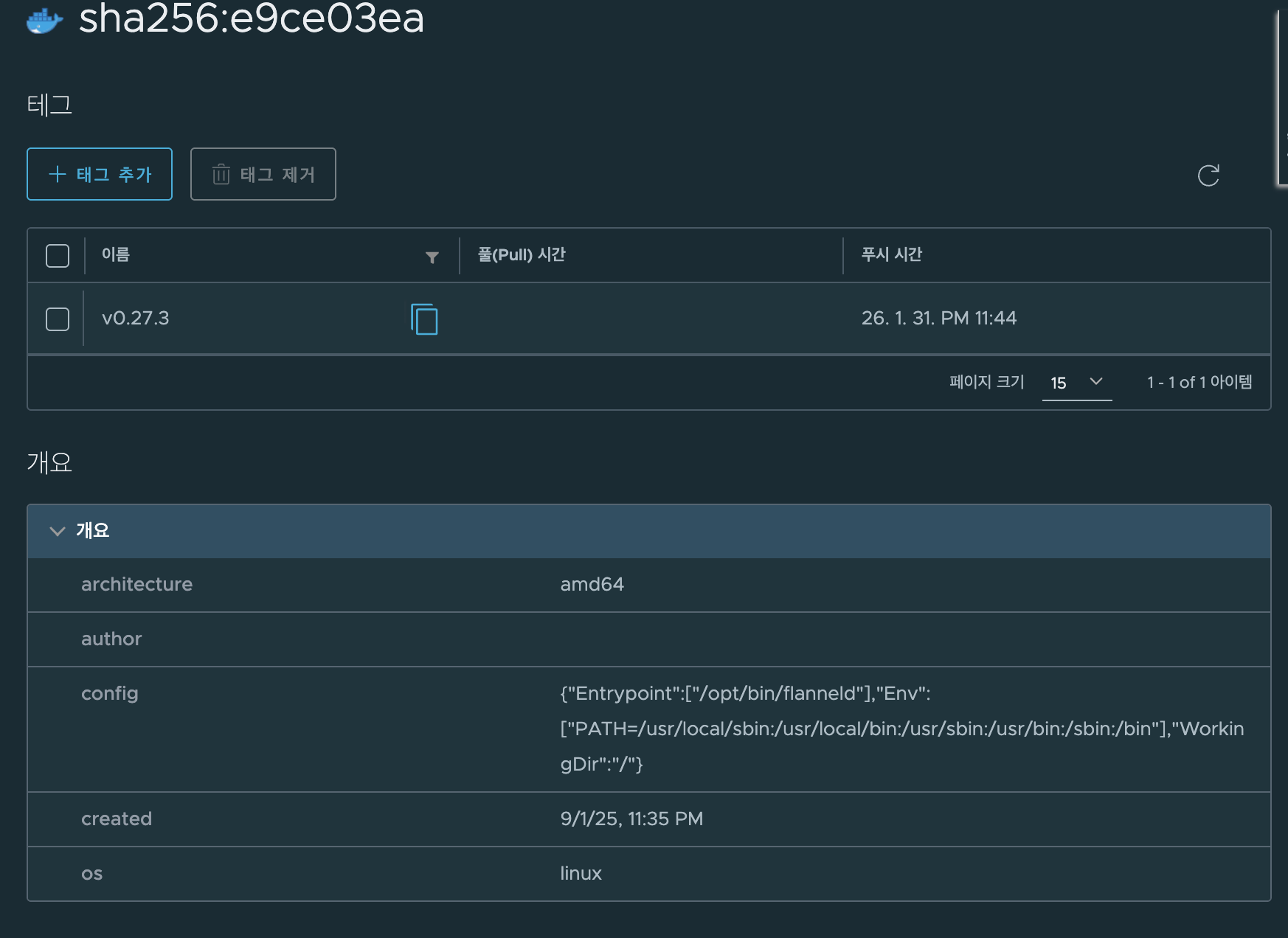
- kubespray로 배포할때 도커 저장소에서 가져오는 최소한의 이미지를 Harbor에 다운로드 해둔다.
nginxflannelflannel-cni-plugin
- 도커허브에서 이미지 pulling하기
1
2
3
docker pull --platform linux/arm64 docker.io/flannel/flannel:v0.27.3
docker pull --platform linux/arm64 docker.io/flannel/flannel-cni-plugin:v1.7.1-flannel1
docker pull --platform linux/arm64 docker.io/nginx:1.28.0-alpine
- tag
1
2
3
4
5
docker tag docker.io/flannel/flannel:v0.27.3 192.168.0.245/library/flannel:v0.27.3

docker tag docker.io/flannel/flannel-cni-plugin:v1.7.1-flannel1 192.168.0.245/library/flannel-cni-plugin:v1.7.1-flannel1

docker tag docker.io/nginx:1.28.0-alpine 192.168.0.245/library/nginx:1.28.0-alpine
- harbor에 이미지 push하기
1
2
3
docker push 192.168.0.245/library/flannel:v0.27.3
docker push 192.168.0.245/library/flannel-cni-plugin:v1.7.1-flannel1
docker push 192.168.0.245/library/nginx:1.28.0-alpine
컨트롤 플레인 환경 구축
- 각종 확인 커맨드
1
2
3
4
5
6
7
8
9
whoami
pwd
uname -a

which python  && python -V
which python3 && python3 -V

which pip  && pip -V
which pip3 && pip3 -V
pip과git설치
1
2
3
4
dnf install -y python3-pip git

which pip  && pip -V
which pip3 && pip3 -V
- hosts 설정
1
2
3
4
5
6
cat /etc/hosts
sed -i '/^127\.0\.\(1\|2\)\.1/d' /etc/hosts

cat << EOF >> /etc/hosts
192.168.10.100 harbor-registry
EOF
- 확인
1
2
ping -c 1 k8s-ctr
ping -c 1 harbor-registry
- SSH 접속을 위한 설정
1
echo "root:qwe123" | chpasswd
- Root Login 허용 / password인증 허용
1
2
3
4
cat << EOF >> /etc/ssh/sshd_config
PermitRootLogin yes
PasswordAuthentication yes
EOF
1
systemctl restart sshd
- SSH Key 세팅
1
2
3
4
5
ssh-keygen -t rsa -N "" -f /root/.ssh/id_rsa
ls -l ~/.ssh

# ssh-copy-id
ssh-copy-id -o StrictHostKeyChecking=no root@192.168.10.10
- ssh 접속 확인 : IP, hostname
1
2
3
4
cat /root/.ssh/authorized_keys
ssh root@192.168.10.10 hostname
ssh -o StrictHostKeyChecking=no root@k8s-ctr hostname
ssh root@k8s-ctr hostname
- Kubespray Repository 클론하기
1
2
3
git clone -b v2.29.1 https://github.com/kubernetes-sigs/kubespray.git /root/kubespray

cd /root/kubespray
- 파이썬 종속성 확인
1
cat requirements.txt
- 설치
1
pip3 install -r /root/kubespray/requirements.txt
- Ansible 버전 확인
1
2
which ansible
ansible --version
- 각종 확인 커맨드
1
2
pip list
cat ansible.cfg
k8s 배포
목표 환경을 위한 파라미터 설정
- inventory 디렉터리 복사
1
cp -rfp /root/kubespray/inventory/sample /root/kubespray/inventory/mycluster
- inventory.ini 설정
1
2
3
4
5
6
7
8
9
10
11
12
cat << EOF > /root/kubespray/inventory/mycluster/inventory.ini
k8s-ctr ansible_host=192.168.10.10 ip=192.168.10.10

[kube_control_plane]
k8s-ctr

[etcd:children]
kube_control_plane

[kube_node]
k8s-ctr
EOF
- 확인
1
cat /root/kubespray/inventory/mycluster/inventory.ini
cluster.yml확인
1
2
3
grep "^[^#]" inventory/mycluster/group_vars/all/all.yml
grep "^[^#]" inventory/mycluster/group_vars/k8s_cluster/k8s-cluster.yml
- 테스트 항목 수정
1
2
3
4
5
6
7
sed -i 's|kube_network_plugin: calico|kube_network_plugin: flannel|g' inventory/mycluster/group_vars/k8s_cluster/k8s-cluster.yml
sed -i 's|kube_proxy_mode: ipvs|kube_proxy_mode: iptables|g' inventory/mycluster/group_vars/k8s_cluster/k8s-cluster.yml
sed -i 's|enable_nodelocaldns: true|enable_nodelocaldns: false|g' inventory/mycluster/group_vars/k8s_cluster/k8s-cluster.yml
sed -i 's|auto_renew_certificates: false|auto_renew_certificates: true|g' inventory/mycluster/group_vars/k8s_cluster/k8s-cluster.yml
sed -i 's|# auto_renew_certificates_systemd_calendar|auto_renew_certificates_systemd_calendar|g' inventory/mycluster/group_vars/k8s_cluster/k8s-cluster.yml
grep -iE 'kube_network_plugin:|kube_proxy_mode|enable_nodelocaldns:|^auto_renew_certificates' inventory/mycluster/group_vars/k8s_cluster/k8s-cluster.yml
- flannel 수정 및 확인
inventory/mycluster/group_vars/k8s_cluster/k8s-net-flannel.yml
1
2
3
echo "flannel_interface: enp0s9" >> inventory/mycluster/group_vars/k8s_cluster/k8s-net-flannel.yml

grep "^[^#]" inventory/mycluster/group_vars/k8s_cluster/k8s-net-flannel.yml
컨트롤 플래인 확인
1
cat inventory/mycluster/group_vars/k8s_cluster/kube_control_plane.yml
애드온 수정 및 확인
1
2

grep "^[^#]" inventory/mycluster/group_vars/k8s_cluster/addons.yml
- 테스트 기능 수정 및 확인
1
2
3
4
sed -i 's|helm_enabled: false|helm_enabled: true|g' inventory/mycluster/group_vars/k8s_cluster/addons.yml
sed -i 's|metrics_server_enabled: false|metrics_server_enabled: true|g' inventory/mycluster/group_vars/k8s_cluster/addons.yml
sed -i 's|node_feature_discovery_enabled: false|node_feature_discovery_enabled: true|g' inventory/mycluster/group_vars/k8s_cluster/addons.yml
grep -iE 'helm_enabled:|metrics_server_enabled:|node_feature_discovery_enabled:' inventory/mycluster/group_vars/k8s_cluster/addons.yml
- ETCD 확인 (파드가 아닌
systemd unit)
1
grep "^[^#]" inventory/mycluster/group_vars/all/etcd.yml
containerd 이미지 저장소 미러링하기
- 이미지 저장소를 미러링하기 위해
containerd.yml을 수정한다.
1
2
cd ~ # root
cat ~/kubespray/inventory/mycluster/group_vars/all/containerd.yml
중간에 별도로 Harbor서버를 구동하였으므로 ip주소를 변경하였다. 본인의 Harbor서버 IP를 적어주면 됨
1
2
3
4
5
6
containerd_registries_mirrors:
  - prefix: docker.io
    mirrors:
      - host: "http://192.168.0.245" # 해당 HOST에 맞게 변경
        capabilities: ["pull", "resolve"]
        skip_verify: true
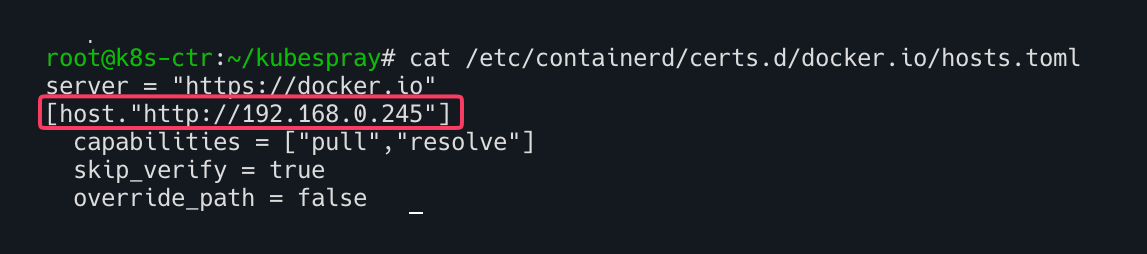
- 추후 배포후 확인
1
cat /etc/containerd/certs.d/docker.io/hosts.toml
트러블슈팅
Harbor서버를 http로 동작시 docker push가 거부되는 문제
- Harbor가 있는 서버에서 Docker 데몬 설정 수정
- HTTPS가 아니므로 기본 거부되므로 아래와 같이 강제적으로 push가능하도록 설정해준다.
1
2
3
4
5
6
7
sudo tee /etc/docker/daemon.json <<'EOF'
{
  "insecure-registries": [
    "192.168.0.245"
  ]
}
EOF

- Docker 재시작
1
2
sudo systemctl daemon-reload
sudo systemctl restart docker
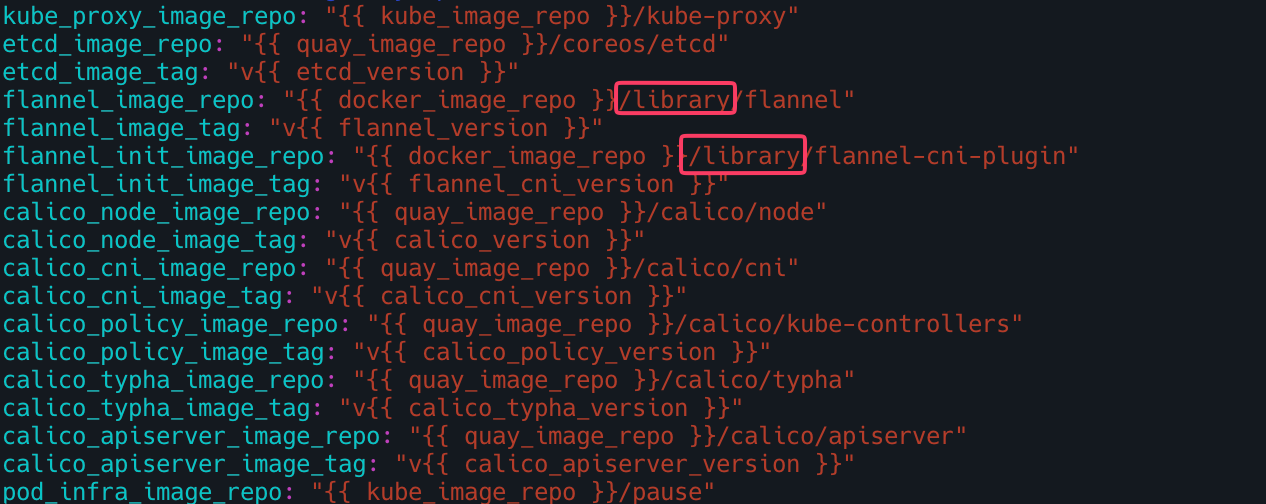
이미지 저장소 경로 불일치 문제
- 기본적인 kubespray 이미지 저장소 경로는 아래와 같다.
docker_image_repo/flannel/flannel즉, docker.io/flannel/flannel 로 설정된다.
- 하지만 미러 저장소의 호스트네임을 변경하니 docker.io가
192.168.0.245로 바뀌면서192.168.0.245/flannel/flannel로 pulling을 시도한다. 하지만 habor서버에는 flannel 이라는 이름의 프로젝트가 존재하지 않으므로 계속 Not Found에러가 발생하였다. - 따라서 harbor 서버에서
library를 프로젝트를 참조하도록 아래와 같이 변경해주었다.- 이부분에 대해서는 별도의 좋은 방법이 있을지 모르겠다. 추후에 시도해볼문제
- flannel 레포지토리 정의된곳 찾기
1
2
3
grep -r "flannel_image_repo" ~/kubespray/roles/ ~/kubespray/inventory/mycluster/group_vars/

#/root/kubespray/roles/kubespray_defaults/defaults/main/download.yml:flannel_image_repo: "/flannel/flannel"
- download경로 변경
1
vi /root/kubespray/roles/kubespray_defaults/defaults/main/download.yml
아래와 같이 이미지 저장소 경로 변경가능
1
2
3
4
5
6
7
8
..
flannel_image_repo: "/library/flannel" ## library/flannel 하드코딩하여 변경
...
flannel_image_tag: "v"
flannel_init_image_repo: "/library/flannel-cni-plugin"
## library/flannel 하드코딩하여 변경
flannel_init_image_tag: "v"
...
nertdctlimage pulling 테스트
1
nerdctl -n k8s.io pull docker.io/library/flannel:v0.27.3
docker.io로 이미지 pulling하였지만 미러링 저장소로 요청하는 것 확인

docker 이미지 pulling시 아키텍처 불일치
- Harbor서버가
x86_64아키텍처였으므로 docker pull시 자연스럽게amd64버전으로 다운로드가 되어버렸다. VM의k8s-ctr의 경우amd64아키텍처 이므로 flannel 파드가 기동되지 않는 현상이 발생하였다. - 아래와 같이 아키텍처를 명시해줌으로써 해당 아키텍처에 맞는 이미지를 쓰도록 한다.
1
docker pull --platform linux/arm64 ~
배포
- 배포 전 TASK 목록 확인
1
ansible-playbook -i inventory/mycluster/inventory.ini -v cluster.yml -e kube_version="1.33.3" --list-tasks
- 배포
1
ANSIBLE_FORCE_COLOR=true ansible-playbook -i inventory/mycluster/inventory.ini -v cluster.yml -e kube_version="1.33.3" | tee kubespray_install.log
1
2
3
4
5
6
kubectl get node -v=6
cat /root/.kube/config


kubectl get node -owide
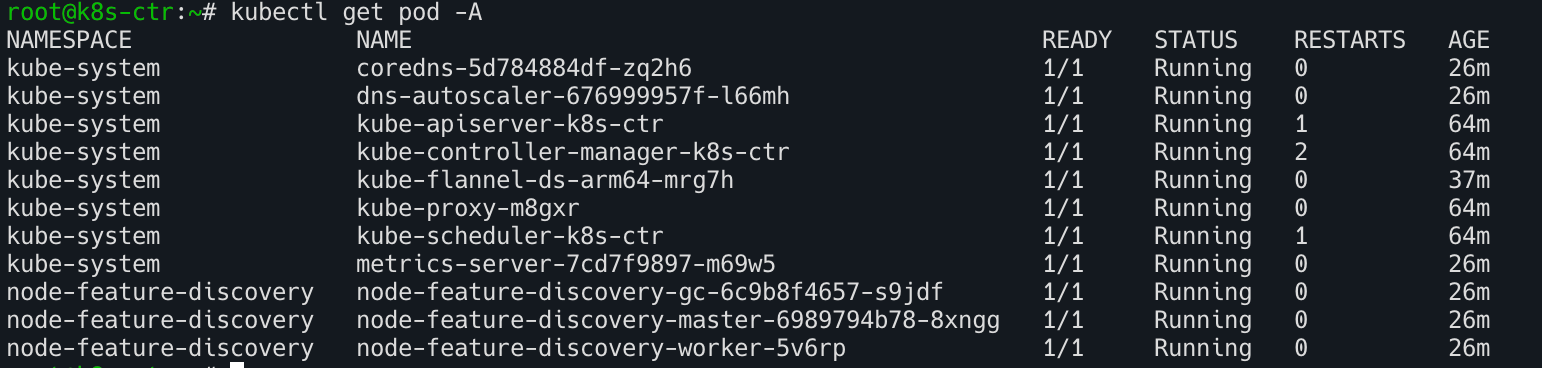
kubectl get pod -A
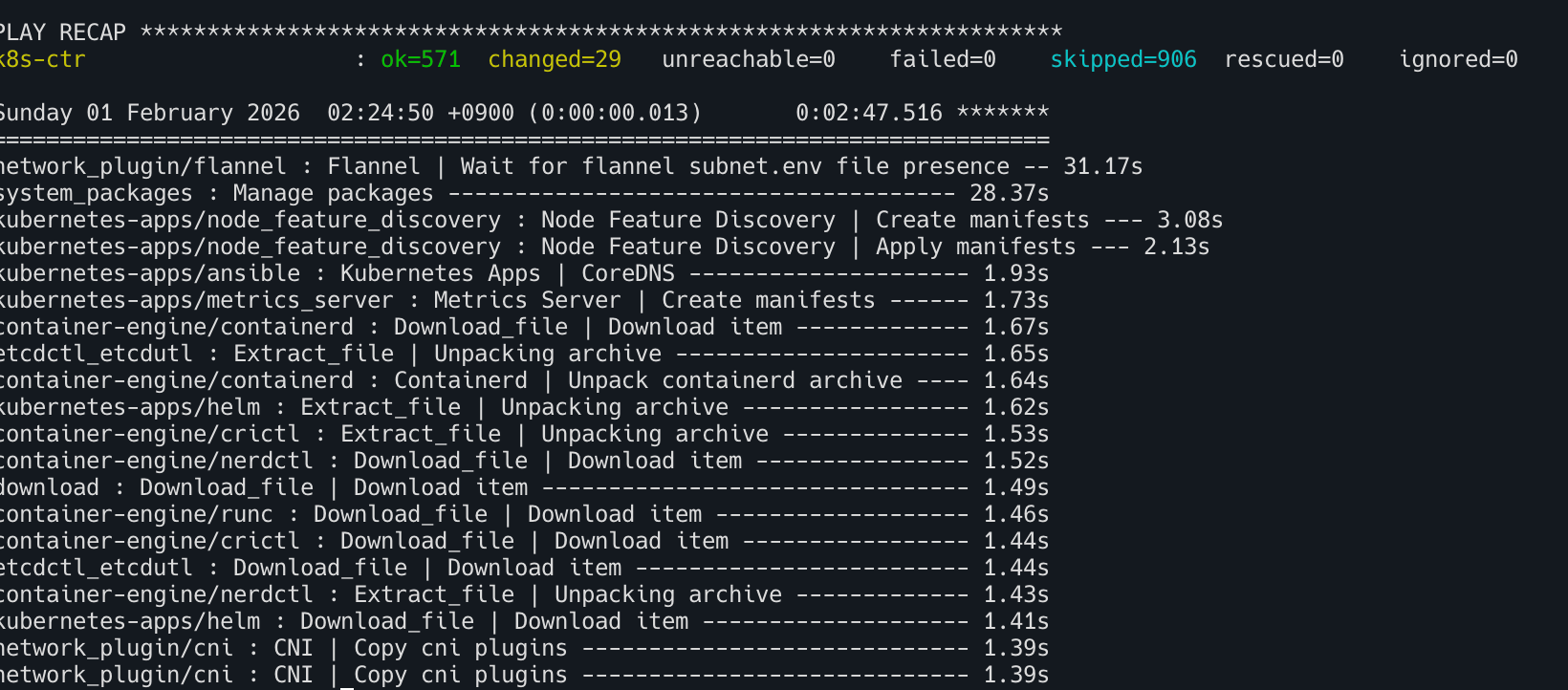
- 배포 성공!
이 기사는 저작권자의 CC BY 4.0 라이센스를 따릅니다.